
Importing Excel Data into a SQL Table
Using the built-in Import and Export Data Utility
Importing data into a Microsoft SQL Server Database Table can be a little tricky. Things have changed from back in the days where the DTS packages were easy to configure (although SSIS is a more powerful alternative), if you want a very simple, very fast way to import data into your SQL Server Database from a Microsoft Excel file this is an extremely quick and easy way to do it.
The first thing to note, and this is very important, is that the 64-bit import tool does not natively open Microsoft Excel files.
Choose the 32-bit tool.
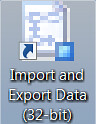 |
| 32-bit Import/Export Tool |
When you open the Import/Export Wizard you will see the following dialogue box and will need to choose the data source. If you do not see a Microsoft Excel option then you may have accidentally opened the 64 Bit version of the wizard.
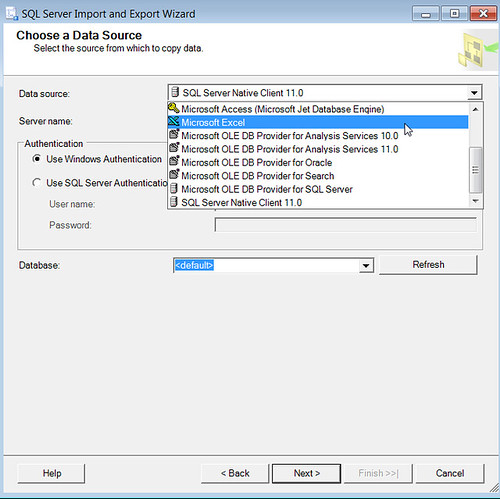
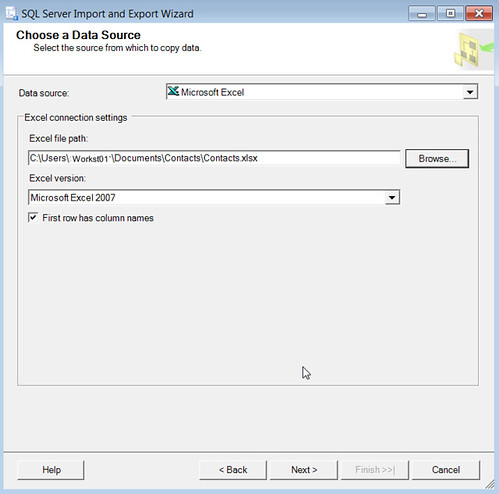
Once you have chosen Microsoft Excel as your data source the dialogue options will change and allow you to locate an excel file. Browse to or type in the location of your excel file.
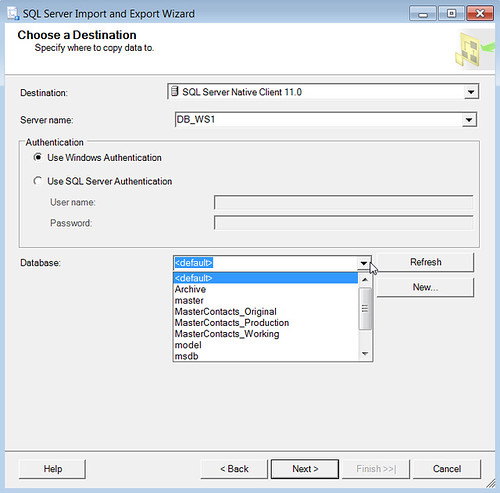
Choose the database server and the database you wish to connect to.
If you need to add additional parameters or logic into the import, or want to import into an existing table based on existing data you can write a query to specify a data transfer. I'll cover that in another article but for now we are just going to import the data into a new table.
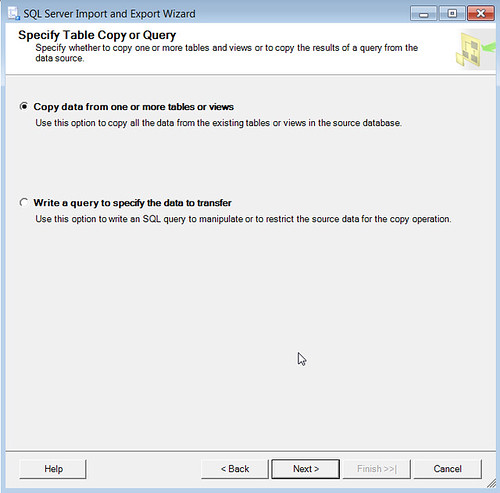
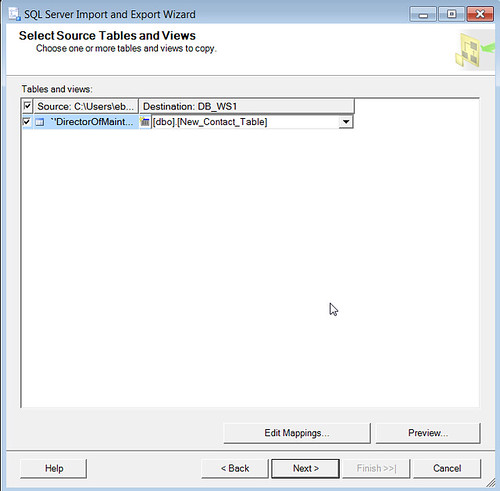
You will then be given an opportunity to either select a table in which you can import the data, or create a new table. I've created a new table called New_Contact_Table.
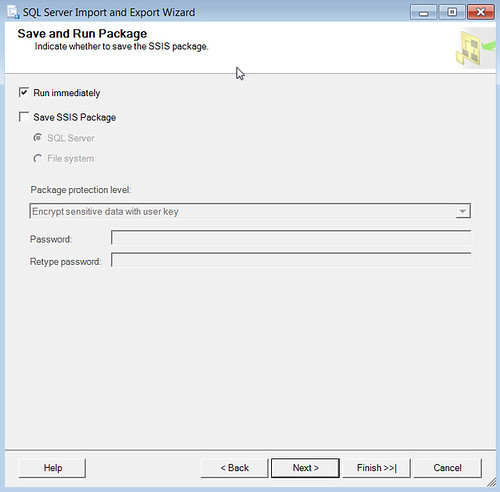
The import can then be imported immediately or it can be saved as a SSIS package which could be executed on a schedule or again at a later point in time.
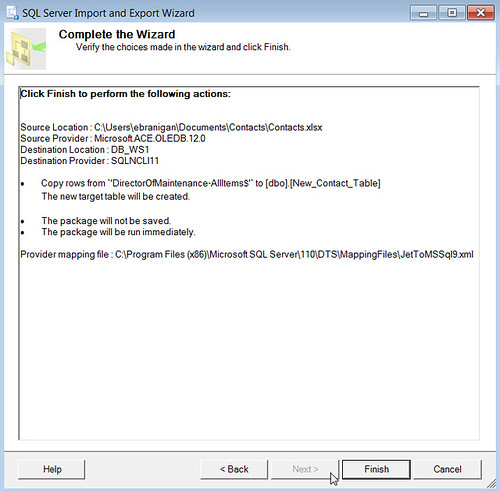
The confirmation reiterates the configuration changes that you've selected.
When you click the finish button the status screen will show the progress, and if all goes well it will indicate that the data was exported properly into the database.
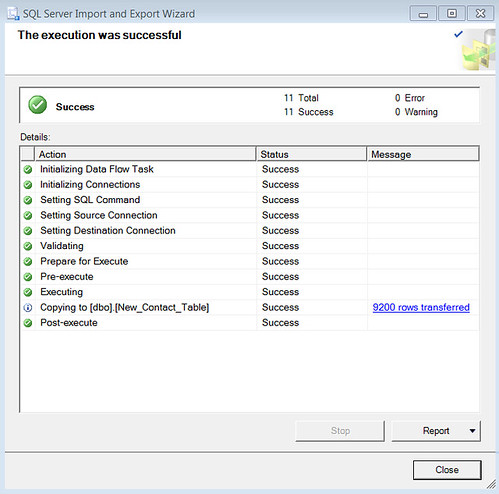
Finally as you can see the 9200 rows that were imported are verified.
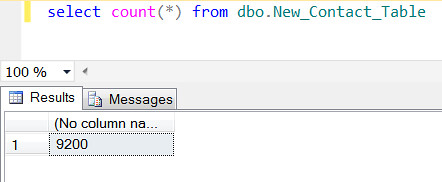
From this point you can simply manipulate the data into an existing table or if you just needed the data imported into a SQL server then your job is done.
~Yati


ReplyDeleteMuch obliged to you for requiring significant investment to give us a portion of the valuable and restrictive data with us.
Regards,
Excel Advanced Training | MS excel Training in Chennai | Excel Macro Training in chennai
Wonderful information to sharing... Selenium Training Institute in Chennai | Selenium Training Institute in Velachery.
ReplyDeleteImpressive blog with useful content, The way of explanation about SQL was really superb. Thanks a lot for share such a nice articleLinux Training in Chennai | Unix Training in Chennai | Python Training in Chennai
ReplyDeleteThe post is written in very a good manner and it contains many useful information for me. Microsoft Excel Training Courses Malaysia
ReplyDeleteExcellent post!!Thanks for sharing your interesting blog of post.Java Training in Chennai | Web Designing Training Institute in Chennai | DotNet Training Institute in Chennai
ReplyDeleteThank you so much for sharing this great blog.Very inspiring and helpful too.Hope you continue to share more of your ideas.I will definitely love to read. TutuHelper
ReplyDeleteThanks for the blog loaded with so many information. Stopping by your blog helped me to get what I was looking for. Download iOS 11.3
ReplyDeleteI stumbled upon this blog with a host of new possibilities to explore. Thank you for the friendly in sharing. TutuApp VIP
ReplyDeleteThanks for sharing the details! thanks for sharing information,nice article.
ReplyDeletei would like to more information from your side!
please added more then tips!Am working in
Excel Training in Hyderabad
Your Blog is really Nice and Informative..Thanks for sharing such a interesting article..keep updating..I really enjoy simply reading all of your weblogs. Simply wanted to inform you that you have people like me who appreciate your work.
ReplyDeleteJava Project Center in Chennai | Java Project Center in Velachery
Good website! I truly love how it is easy on my eyes it is. I am wondering how I might be notified whenever a new post has been made. I have subscribed to your RSS which may do the trick? Have a great day! for grammarly trial click here
ReplyDeleteGood post very nice to read
ReplyDeleteAdvance Excel Training
In the beginning, I would like to thank you much about this great post. Its very useful and helpful for anyone looking for tips. I like your writing style and I hope you will keep doing this good working.
ReplyDeleteHacking Course in Chennai
Hacking Classes in Chennai
AWS Training in Chennai
Data Science Course in Chennai
Digital Marketing Course in Chennai
Hacking Training in Tambaram
Hacking Training in Velachery
Hacking Training in OMR
TutuApp APK iOS Free Download Latest Version 2019 Best Version Free! here And Also more...
ReplyDeleteTutuApp
TutuApp Download
Snaptube PC Windows
Tubemate
Thanks for your informative article. Android SDK allows you to create stunning mobile application loaded with more features and enhanced priority. With basis on Java coding language, you can create stunning mobile application with ease.
ReplyDeleteRegrads,
Advanced Excel Training in Chennai | Advanced Excel Training Courses in Chennai | Advanced Excel Certification Training
For IT Softwre Job Training my suggestion Softlogic. Softlogic Provide the Training and Placement for bellow Site dot net training in chennai | angularjs training in chennai | asp.net training in chennai | linux training in chennai | iot training in chennai | android classes in chennai | Excel Training in Chennai
ReplyDeleteThis comment has been removed by the author.
ReplyDelete"The information is meaningful and magnificent which is shared here about the article. I really thank you for such a innovative post. if you want to take training in android, then ratindia.com is best for you.
ReplyDeleteAndroid classes in jaipur
best android coaching in jaipur
android training institute in jaipur
I appreciated your work very thanks grammar checking
ReplyDeleteThank you again for all the knowledge you distribute,Good post. I was very interested in the article, it's quite inspiring I should admit. I like visiting you site since I always come across interesting articles like this one.Great Job, I greatly appreciate that.Do Keep sharing! Regards, google maps alternatives
ReplyDeleteThanks for giving excellent Message.Waiting for next article
ReplyDeleteHtml5 Training in Chennai
Html training in chennai
html course in chennai
html5 training in vadapalani
Html5 Training in Velachery
DOT NET Training in Chennai
core java training in chennai
Hibernate Training in Chennai
Mobile Testing Training in Chennai
SAS Training in Chennai
I feel very grateful that I read this. It is very helpful and very informative and I really learned a lot from it.
ReplyDeleteapp and you are doing well.
Dot Net Training in Chennai | Dot Net Training in anna nagar | Dot Net Training in omr | Dot Net Training in porur | Dot Net Training in tambaram | Dot Net Training in velachery
Microsoft Excel is a powerful spreadsheet application, or workbook. A workbook is a computer application that allows a user to enter a series of numbers, along with other data. custom excel dashboards
ReplyDeleteus import export data I think this is an informative post and it is very useful and knowledgeable. therefore, I would like to thank you for the efforts you have made in writing this article.
ReplyDeleteMua vé tại Aivivu, tham khảo
ReplyDeleteđặt vé máy bay từ singapore về việt nam
vé máy bay vinh sài gòn tháng 8
vé máy bay sài gòn ra hà nội
tphcm đi nha trang
giá vé máy bay tphcm đi quy nhơn
This article provided me with a wealth of information. The article is incredibly helpful and offers some of the most useful information. Thank you for sharing it with us. shipment data
ReplyDeleteperde modelleri
ReplyDeletesms onay
mobil ödeme bozdurma
nftnasilalinir.com
Ankara Evden Eve Nakliyat
Trafik Sigortası
Dedektor
web sitesi kurma
aşk kitapları
SMM PANEL
ReplyDeletesmm panel
iş ilanları
İNSTAGRAM TAKİPÇİ SATIN AL
hirdavatciburada.com
beyazesyateknikservisi.com.tr
SERVİS
Jeton Hilesi İndir
özel ambulans
ReplyDeleteen son çıkan perde modelleri
en son çıkan perde modelleri
lisans satın al
minecraft premium
yurtdışı kargo
uc satın al
nft nasıl alınır
NCH Pixillion Image converter 10.49 Crack is among the foremost reliable, easy. By means of this picture converter and, you will rework our records into forms for hosting on site Pixillion Image Converter Crack
ReplyDeleteYou can check at Microsoft to gain full access to office 2011, I highly recommend you to find a product key to support the developer. Mac Office 2011 Product Key Crack
ReplyDeleteIt s a very useful page. Thank you.
ReplyDeleteyenisehir
kinik
tunceli
yenisehir
menderes
altinekin
yomra
pinarbasi
yuregir
It s a very useful page. Thank you. 928e0cc0166af2af563b94e5465ab65c
ReplyDeletesancaktepe
aglasun
digor
marmaris
gole
gurpinar
tutak
dogansehir
kemer
It s a very useful page. Thank you. 156406dc24237358fcc545dc9367bae0
ReplyDeletenilufer
savsat
carsibasi
mersin
saruhanli
yesilhisar
samandag
cesme
ispir
Congratulations on your article, it was very helpful and successful. 91bc292877a91feae8fa48d7bd99f857
ReplyDeletenumara onay
website kurma
sms onay
Thank you for your explanation, very good content. e4282a54977333011473c815481a3377
ReplyDeletedefine dedektörü
Thanks for your article. ae683180b534c684ce4c70df883353b7
ReplyDeleteevde iş imkanı
Good content. You write beautiful things.
ReplyDeletetaksi
vbet
sportsbet
hacklink
korsan taksi
vbet
mrbahis
mrbahis
hacklink
Good text Write good content success. Thank you
ReplyDeletemobil ödeme bahis
poker siteleri
betpark
kibris bahis siteleri
kralbet
betmatik
tipobet
slot siteleri
download a professional video editor software like fl studio 21 crack
ReplyDeletehref="https://crackedpc.org/">https://crackedpc.org/
ReplyDeletegörükle
ReplyDeletesinop
bodrum +
van
sultanbeyli
NRUZOB
güngören
ReplyDeleteeskişehir
esenyurt
trabzon
kadıköy
TVVİ4
muş
ReplyDeleteniğde
tunceli
aydın
amasya
EFF
salt likit
ReplyDeletesalt likit
İS1O
https://saglamproxy.com
ReplyDeletemetin2 proxy
proxy satın al
knight online proxy
mobil proxy satın al
6U7
https://bayanlarsitesi.com/
ReplyDeleteYenibosna
Anadolu Kavağı
İçerenköy
Yeşilköy
D346F
Ankara
ReplyDeleteVan
Hakkari
Edirne
Yozgat
4KT
ankara
ReplyDeletesakarya
tekirdağ
kastamonu
amasya
3WN
ağrı
ReplyDeletevan
elazığ
adıyaman
bingöl
DSB
href="https://istanbulolala.biz/">https://istanbulolala.biz/
ReplyDeleteEFİS
düzce evden eve nakliyat
ReplyDeletedenizli evden eve nakliyat
kırşehir evden eve nakliyat
çorum evden eve nakliyat
afyon evden eve nakliyat
P8A
This comment has been removed by the author.
ReplyDeleteurfa evden eve nakliyat
ReplyDeletemalatya evden eve nakliyat
burdur evden eve nakliyat
kırıkkale evden eve nakliyat
kars evden eve nakliyat
0Y5QL6
96CC9
ReplyDeleteAnkara Evden Eve Nakliyat
Hakkari Lojistik
Konya Parça Eşya Taşıma
Maraş Parça Eşya Taşıma
Siirt Lojistik
0E64B
ReplyDeleteLbank Güvenilir mi
Urfa Evden Eve Nakliyat
Yenimahalle Fayans Ustası
Kripto Para Nedir
Ünye Fayans Ustası
Mardin Evden Eve Nakliyat
Referans Kimliği Nedir
Muğla Evden Eve Nakliyat
Mamak Parke Ustası
Every point you beautifully expressed. Every time I read your site, I'm in awe of your exceptional writing skills.Best CA Coaching Centers in Hyderabad
ReplyDelete16326
ReplyDeleteMexc Borsası Güvenilir mi
Kripto Para Madenciliği Siteleri
Binance Madenciliği Nedir
Okex Borsası Güvenilir mi
Coin Madenciliği Nedir
Coin Madenciliği Siteleri
Bitcoin Üretme Siteleri
Kripto Para Madenciliği Nedir
Binance Nasıl Oynanır
123CA
ReplyDeleteBitcoin Nasıl Üretilir
Coin Madenciliği Siteleri
Paribu Borsası Güvenilir mi
Kripto Para Madenciliği Siteleri
Bitcoin Madenciliği Siteleri
Kripto Para Nasıl Kazılır
https://resimlimag.net/
Coin Çıkarma
Kripto Para Nasıl Çıkarılır
After reading your piece, I learned that it deals with the appearance of control. But I don't understand this notion at all. I'd appreciate additional information about this subject. Would you kindly supply it?Top CA Coaching Institute in Hyderabad
ReplyDelete8E38E
ReplyDeleteurfa nanytoo sohbet
hakkari canlı sohbet bedava
random görüntülü sohbet
amasya canlı sohbet et
diyarbakır sesli sohbet siteleri
sinop parasız görüntülü sohbet
kayseri chat sohbet
gümüşhane görüntülü sohbet sitesi
burdur canlı sohbet ücretsiz
C17F2
ReplyDeleteparasız sohbet
bingöl kadınlarla rastgele sohbet
hakkari parasız sohbet
ankara canlı sohbet odaları
giresun parasız görüntülü sohbet
ısparta rastgele sohbet
isparta telefonda canlı sohbet
ücretsiz sohbet siteleri
görüntülü sohbet kızlarla
We appreciate you sharing with us this special and helpful information. Fantastic work. continue bloggingBest CA Coaching Centers in Hyderabad
ReplyDeleteFA493
ReplyDeletekocaeli rastgele görüntülü sohbet uygulamaları
canlı görüntülü sohbet siteleri
bingöl telefonda canlı sohbet
mobil sohbet et
hatay parasız görüntülü sohbet
yabancı görüntülü sohbet siteleri
burdur rastgele görüntülü sohbet
yabancı görüntülü sohbet
muş telefonda kadınlarla sohbet
65326
ReplyDeletekucoin
btcturk
kredi kartı ile kripto para alma
bybit
bitcoin nasıl üretilir
bitexen
mexc
https://toptansatinal.com/
bingx
92CD1
ReplyDeletebitcoin ne zaman yükselir
mexc
https://toptansatinal.com/
en düşük komisyonlu kripto borsası
canlı sohbet siteleri
kripto ne demek
kripto telegram grupları
bybit
poloniex
7AFA5
ReplyDeletegörüntülü ücretli show
40625
ReplyDeletegörüntülü canlı şov